Faculty Performance
Evaluation

Evaluation Period Closing Soon
0 days left

Your feedback helps us build a better CLSU.

Evaluate

About TESO

Established in 1997 under the Academic Affairs Program (Board Resolution No. 36-1997), the CLSU Testing and Evaluation Services Office (TESO) (Formerly known as Testing and Evaluation Center (CTEC)) was created to address the growing need for academic assessment and evaluation in Central Luzon State University.

  • The Office of Admissions (OAD) is different from the testing and Evaluation Services Office (TESO). TESO is not under OAD.

Need Help?

Frequently Asked Questions

Getting Started

  • You may contact the office through email or by visiting during office hours.
  • Monday: 7:30 AM - 4:30 PM (Face-to-face)
  • Tuesday to Thursday: 8:00 AM - 5:00 PM (Face-to-face)
  • Friday: 8:00 AM - 5:00 PM (Work From Home)
  • All undergraduate and graduate students who have "regular classes" are required to complete the evaluation. Graduating students who have at least one (1) regular subject must also complete the evaluation.
  • All subjects are included except:
    • NSTP(ROTC/CWTS)
    • Thesis & Dissertation, and
    • all forms of on-the-job training (OJT), internships, practicum, apprenticeships, practice teaching, and major field practice for both undergraduate and graduate programs.
  • The evaluation period starts one (1) week after the 2nd term exam and ends no later than two (2) weeks before the final term. This means it usually lasts for more or less than one month.
Evaluation schedule image will appear here.
(Replace placeholder with: <img src="..." alt="Evaluation Schedule">)
  • The TESO will send you an email regarding the evaluation. However, if you did not receive an email, you may do any of the following:
  • Send us an email at ctecevaluationdivision@clsu2.edu.ph
  • Search CLSU Faculty Performance Evaluation in your browser
  • Visit the Testing and Evaluation Services Office (TESO) Facebook page and look for announcements regarding the evaluation
  • Students who do not evaluate their instructors within the given timeframe will not be able to view their grades or enroll on time. However, this does not apply to midterm grades.
  • You will be required to submit a letter to the Office of the Vice President for Academic Affairs (OVPAA).
    • What should be included in the letter?
      • 1. It should be addressed to the Office of the Vice President for Academic Affairs, Dr. Ravelina R. Velasco
      • 2. State the reason(s) for not completing the evaluation within the designated timeframe.
      • 3. Indicate your request for approval to complete the evaluation.
  • The schedule for completing the evaluation after submitting your letter to the Office of the Vice President for Academic Affairs (OVPAA) will be subject to approval. The TESO will send you an email regarding your schedule.
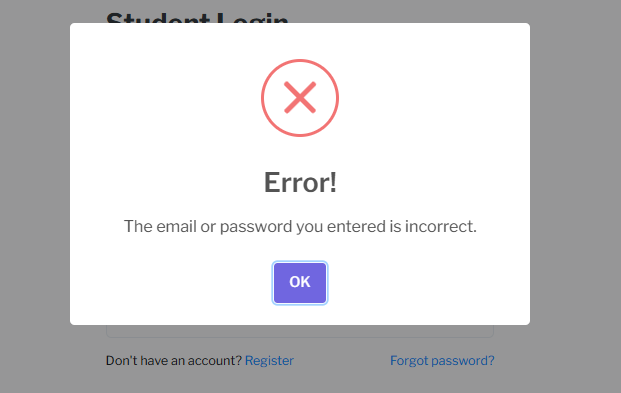
  • For incorrect password, you can click the "Forgot password?" button and insert the "OTP" that is sent on your email.
Incorrect Password image

Common Issues

  • The CAIS Account/System/Portal (OAD) is different from the Faculty Performance Evaluation Account/System/Portal (TESO).
  • The CAIS Account uses the "ID Number" (e.g., 25-0000) to log in, while the Evaluation Account requires clsu2 email.
    • CAIS is where you can view your grades and enroll. The Faculty Performance Evaluation pop-up will only appear if you have not completed the evaluation or if there are discrepancies in your credentials between the two systems.
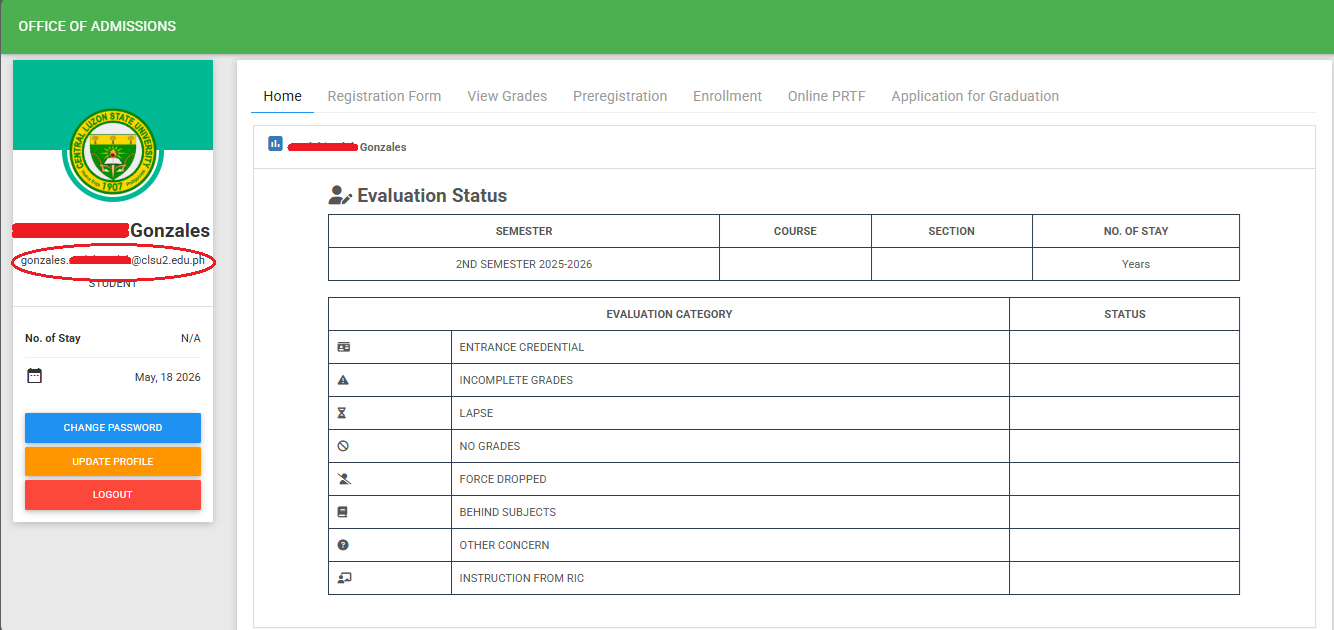
    • If you have already completed the evaluation but still encounter an error, there may be a credential discrepancy. The email encircled in red (OAD CAIS Account) in the photo below should match your email in the Evaluation Account and your official active Gmail account.
    • If there is a discrepancy between your CAIS email and your official email, please visit the Office of Admissions and request an update of your credentials.
    • If your email is missing in your CAIS dashboard, kindly visit the Office of Admissions and request an update of your credentials.
CAIS Email clsu2 image
  • If your are experiencing isssues accessing your CAIS, you can still access your Evaluation Account by opening Google Chrome (recommended) or any browser and searching for "CLSU Faculty Performance Evaluation"
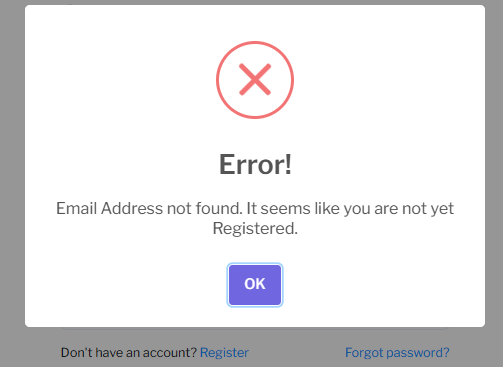
  • If the error "Email Address Not Found" appears, it means that you are not yet registered in the system.
  • Kindly click the "Register" option (highlighted in blue) to proceed with registration.
  • A one-time password (OTP) will be sent to your clsu2 email address.
  • Once registration is complete, you may now log in to your account.
Email Not Found
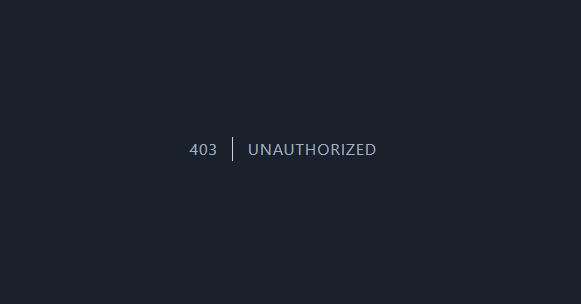
  • If you encounter a log-in error such as "Unauthorized", "401", or "404", kindly try accessing the system by opening your browser and searching for "Faculty Performance Evaluation"
  • Check your internet connection.
  • Either your session has expired (you were inactive for too long) or Access is restricted (you do not have permission to view the page) so Clear your browser cache or try a different browser (Google Chrome is recommended).
  • You are using a different email than the one registered in the system (e.g., not your clsu2 email)
  • If the issue persists, please contact us or visit our office for assistance.
CAIS Email clsu2 image